
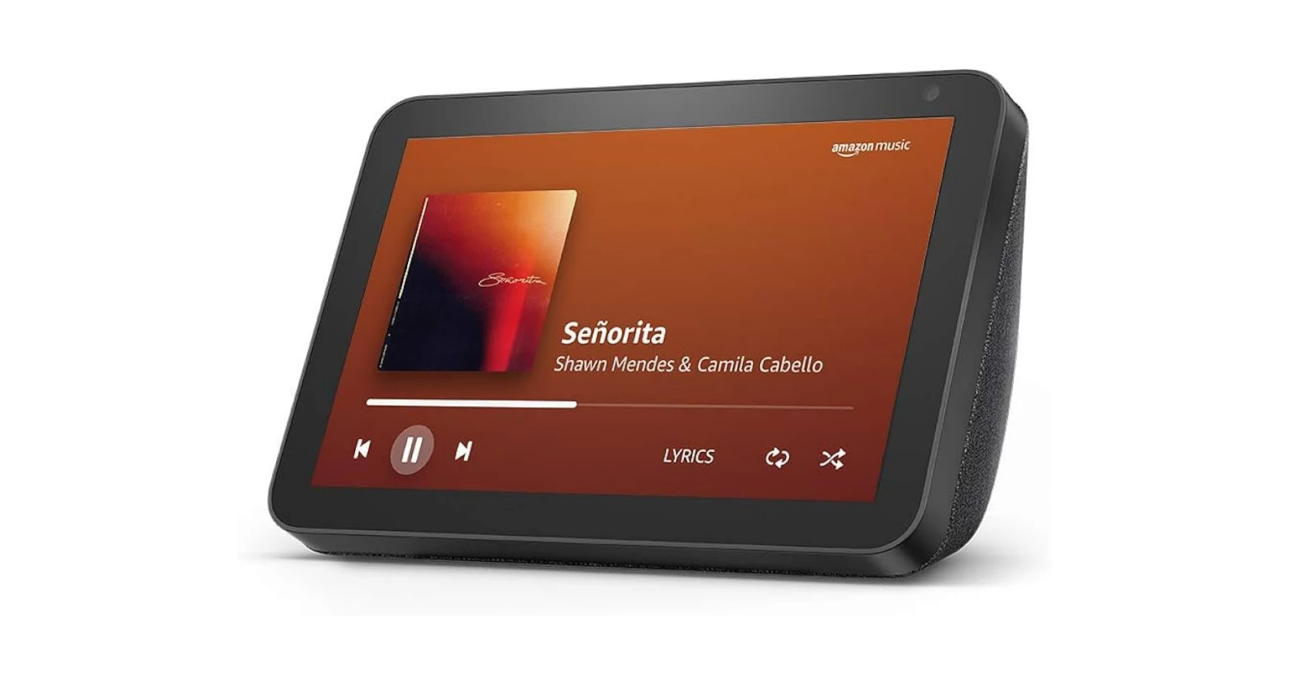
Echo Show owners are increasingly treating Alexa+ as an “ads update” thanks to giant, full-screen “Sponsored” panels that can pop up between family photos and even alongside basic info like timers and alarms. That frustration has kicked off a new wave of DIY workarounds, and while none of them are perfect, a few can dramatically cut down how often your Echo Show turns into a billboard.
If you’ve seen the clock shoved into the bottom-left corner so there’s more room for promos, you’re not imagining it. Multiple users report that the home screen has become a rotating set of content cards (recipes, music, news) with sponsored inserts, and Photo Frame mode can now display ads between personal photos.
Needless to say, just about everyone with an Echo Show isn’t happy to see their devices pushing random ads. Most people purchased these units to serve as a glanceable display for the kitchen or bedroom, which is helpful from across the room, nothing more, nothing less. So if you’re fed up too, here’s what you can do about it.
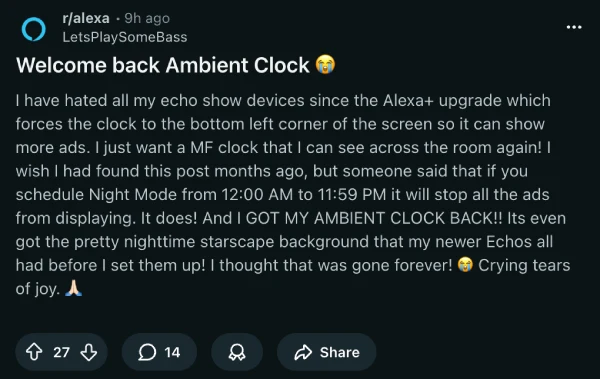
One neat trick right now is almost comically simple: schedule Night Mode for basically the entire day. In a fresh Reddit thread titled “Welcome back Ambient Clock 😭,” the OP claims setting Night Mode from 12:00 AM to 11:59 PM brought back the larger Ambient Clock and stopped ads from displaying. Not everyone gets the same result, though, with some commenters reporting that it briefly works and then snaps back to the tiny corner clock.
A close cousin to that approach is using Do Not Disturb mode. People who tested it say ads drop significantly, but you can miss alerts, and some users report that ads come back in rotation when you talk to Alexa.
If you want something closer to a set-and-forget solution, there’s a more technical workaround that basically tricks Amazon into believing your Echo Show is in a different location.
One r/amazonecho user says ads disappeared after routing only the Echo Show through a VPN to a region that seemingly gets fewer home screen ads, then matching device language and address to that country during setup. It’s clever, but it can also mean that you’ll see incorrect local weather details, a different content catalog, and the risk that Amazon changes the rules tomorrow.
Here’s a screenshot of the exact steps: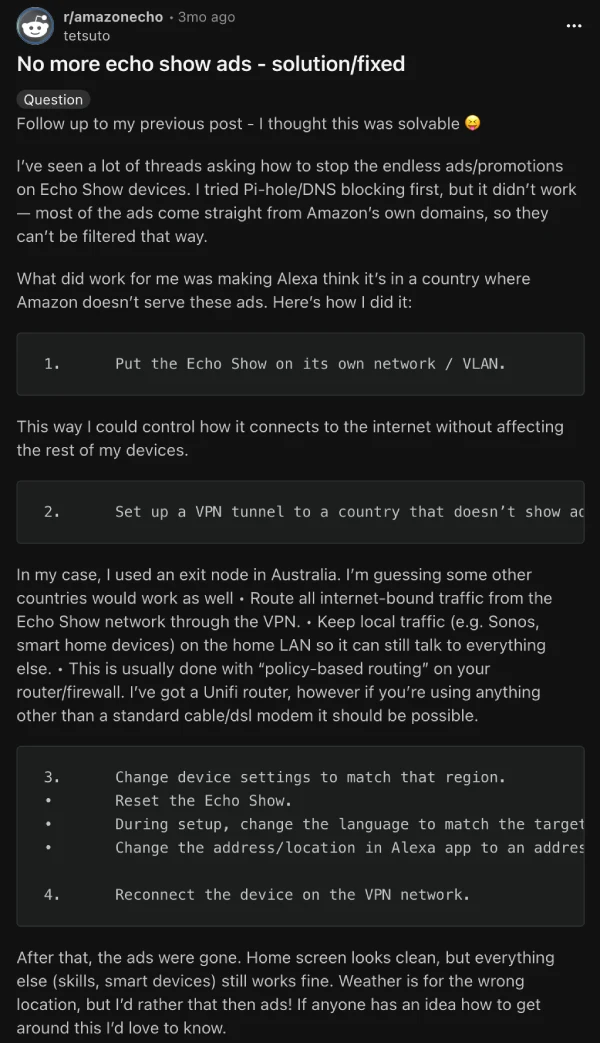
Some other tactics floating around:
I’m hoping Amazon eventually offers a real opt-out, because right now even major outlets note there’s no simple “pay to remove ads” style switch like you get with a Kindle. Instead, Amazon only lets you choose whether you want to see interest-based ads (based on tracked activity) or general ads. You can manage your preferences by going to Settings > Privacy & Permissions > Alexa Privacy > Manage Your Alexa Data (or Alexa Privacy Settings).
I wouldn’t hold my breath on that opt-out coming anytime soon, so give these potential workarounds a shot and let me know which one worked the best (if at all). Meanwhile, in case you’ve stumbled upon a better method to knock off ads, feel free to share it in the comments below.
My fascination with Android phones began the moment I got my hands on one. Since then, I’ve been on a journey to decode the ever-evolving tech landscape, fueled by a passion for both the “how” and the “why.” Since 2018, I’ve been crafting content that empowers users and demystifies the tech world. From in-depth how-to guides that unlock your phone’s potential to breaking news based on original research, I strive to make tech accessible and engaging.
PiunikaWeb.com is owned and operated by DeepSeaGem Technologies India. Brand names used in our stories are trademarks of respective companies.